
This instalment of Easier with BookNet dives deeper into CataList’s Notes feature. If you already know how to create notes but want to learn how to share them more quickly, this blog post is for you. Stick around to learn about the Quick Share button, Recent contacts list, and catalogue recipients option!
New to CataList? CataList is BookNet’s online catalogue service and order management tool. Accounts are free for booksellers and librarians, and are available through a subscription for publishers. You can submit a request for an account on the CataList home page. Check out the CataList Help Manual to learn the basics or read our other blog posts for more tips.
Previously, we went over how you can share notes with contact lists and groups. Today, we’ll build on that understanding and talk about how you can share notes efficiently when time is short and notes are crucial.
Quick Share: Share a note with a single click
Imagine you’re in a meeting where a publisher is presenting their frontlist catalogue to you. You’re going over every title and taking notes for each one as it comes up — all those fun facts about the author, the interesting tidbits that make the book stand out — they’re going to help you come up with the best angle to sell the book.
But you’re not working alone. You have your team, who loves your notes. Being the team player that you are, you share the note with the My Company group so that everyone in your account can see it.
As the meeting continues, you share a note for the next title. And the next. And the next.
Let’s stop there for a moment. How are you sharing those notes?
Generally, you would write your note and click Share to find and choose the contacts who should see your note.
But we’ve introduced a new tool that, with minimal setup, can save you several steps in this workflow: the Quick Share button.
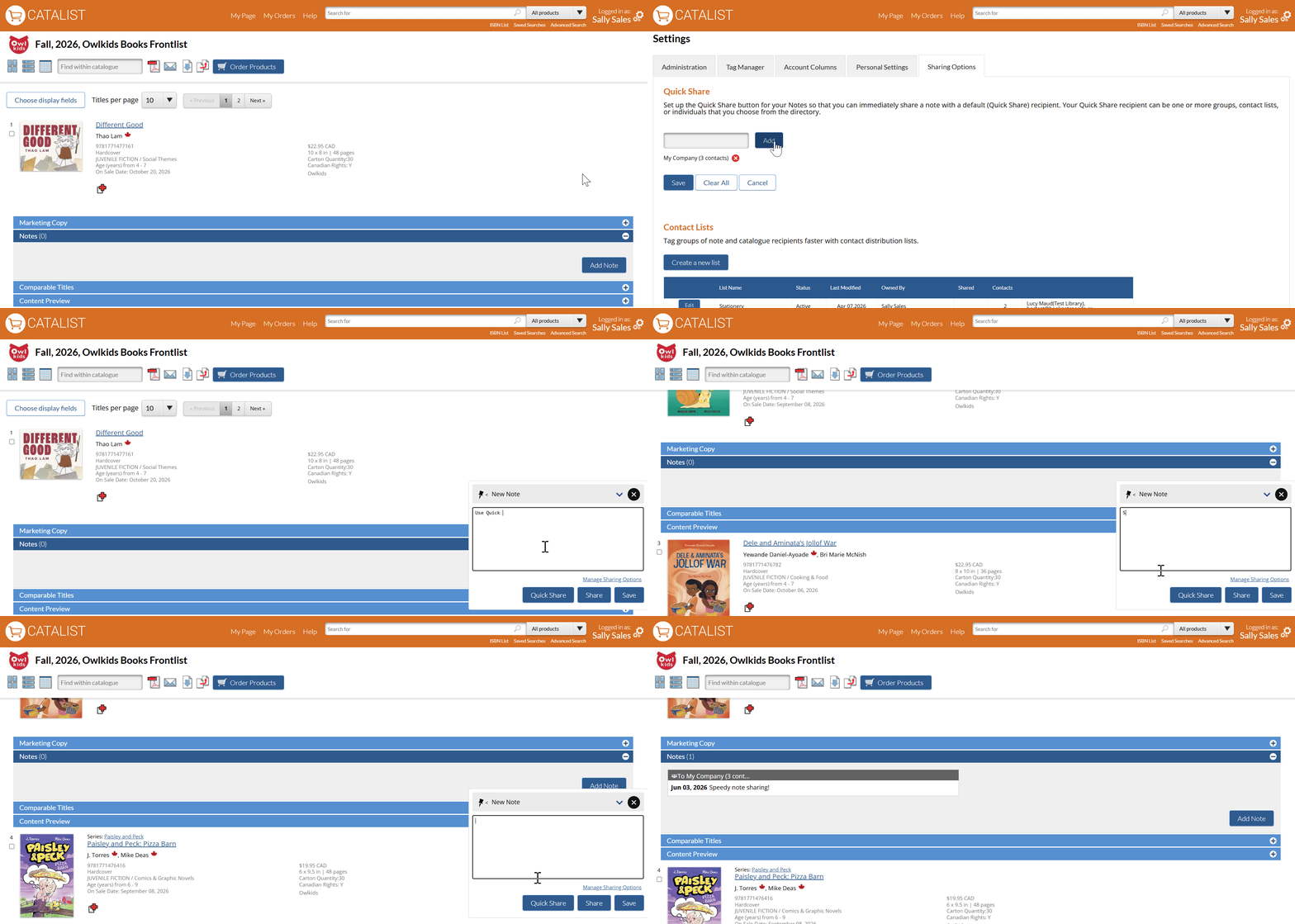
For our example, you can set up the My Company group to be your Quick Share recipient. Once you’ve completed that step, you simply have to write your note and click Quick Share. This automatically creates your note and shares it with the chosen Quick Share recipient (in this case, the My Company group) in a single click.
Recent contacts: Choose recent note recipients without searching for them every time
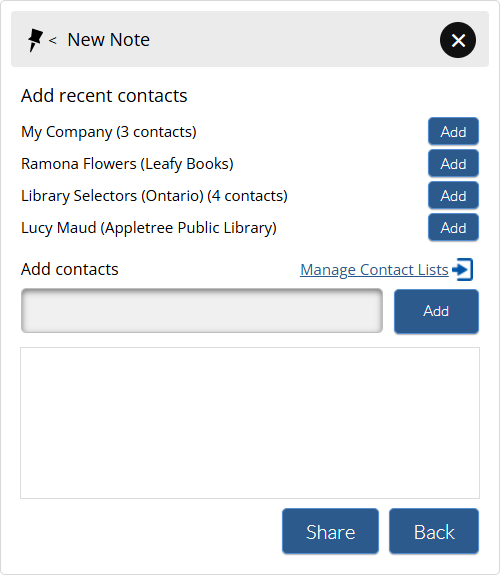
Now let’s talk about what you can do if your note recipient isn’t always the same individual. After writing your note, click Share. You can, of course, search for your contacts in the directory — but check the list of recent contacts first. If you’ve shared a note with the contact recently, their name will appear in the list, saving you the step of searching for them.
From the recent contacts list, click Add to choose the group, contact list, or individual, then click Share.
Custom catalogues: Add your catalogue recipients to new notes
So far, the two workflows that we’ve talked about can work for any title in CataList, whether you’re viewing a catalogue or an individual title.
There’s a third workflow that’s available when you’re adding notes to your own custom catalogue. You may find this option useful if you’ve already shared notes with all of the catalogue recipients, perhaps through the bulk upload tool for notes, and just need to add one or two more notes for the same people.
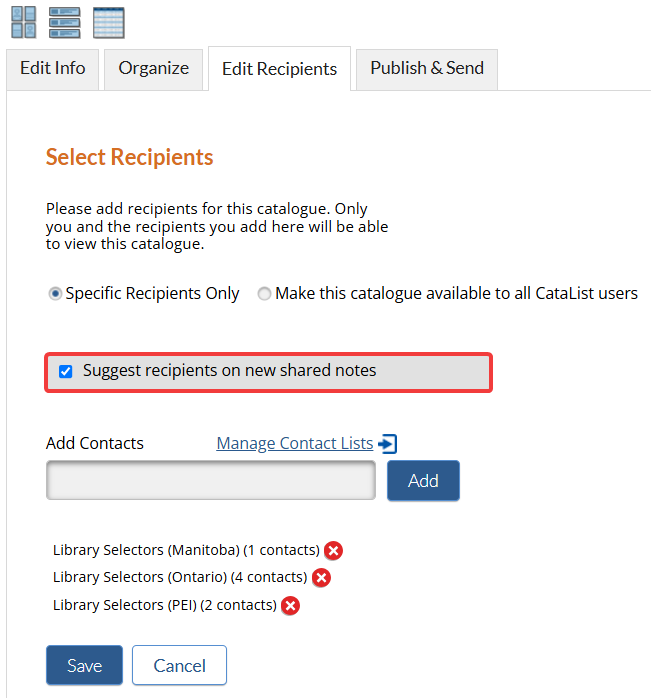
If you’ve specified the catalogue recipients and told CataList to suggest them as your note recipients when creating a new note, their names will automatically be suggested when you want to share a note for a title in the custom catalogue. This saves you the time you might have otherwise spent searching for and adding each catalogue recipient to the note.
To suggest catalogue recipients on new shared notes:
- Go to the Edit Recipients tab.
- Share the catalogue with specific recipients only.
- Select Suggest recipients on new shared notes.
- Save your changes.
You’ve completed the initial set-up.
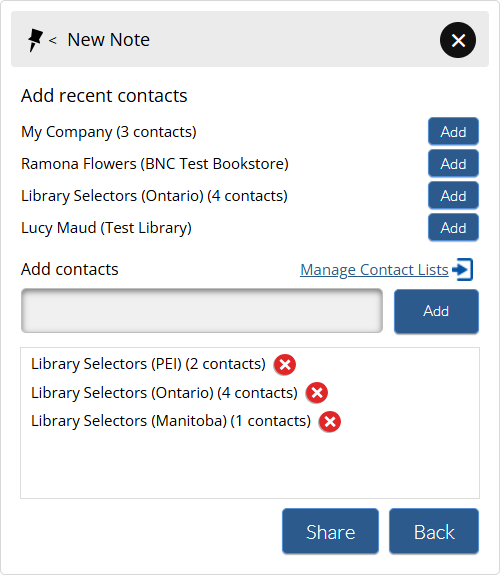
Enter a new note and click Share. Your custom catalogue recipients are immediately suggested, and you can keep or remove those names before sharing the note.
We hope these tips help streamline your note-taking workflows!
Find more tips and tricks that will help you get the most out of BookNet Canada’s products in the Easier with BookNet blog series.To have these tips directly delivered to your inbox, sign up for our newsletters!